Setting Up a Fully Offline LLM with Pi Code
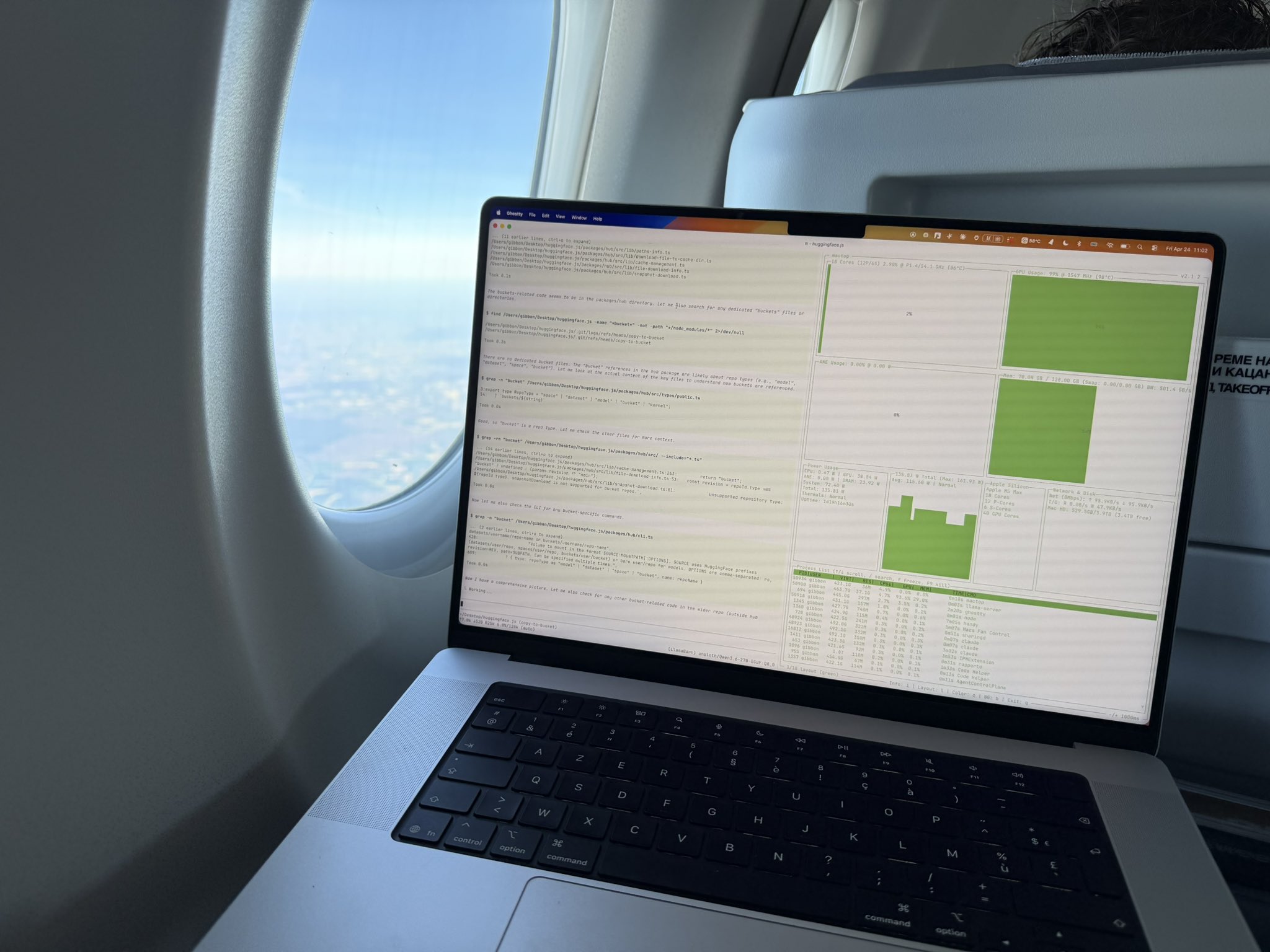
Motivation: this 👇 inspired me! You can build this too!
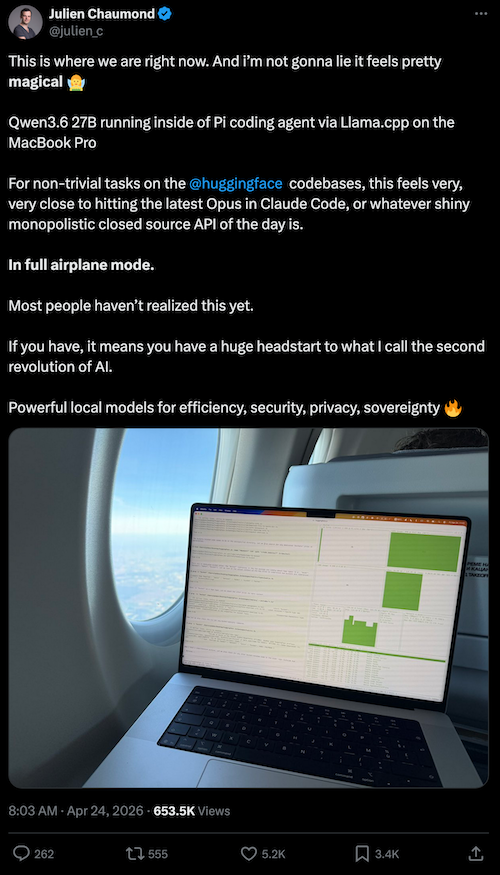
This image inspired me to explore the world of fully offline local LLMs. Seeing the potential of running powerful language models entirely on local hardware without relying on cloud services opened my eyes to the possibilities of privacy-first AI. The concept of having complete control over my AI infrastructure, without data leaving my machine, resonated deeply with my values around privacy and self-sufficiency.
The Hardware
Ready to set up this exact thing on your Mac? Here’s what powered this setup:
| Component | Specification |
|---|---|
| Model | MacBook Pro (Mac17,9) |
| Chip | Apple M5 Pro |
| Cores | 18 (6 Super + 12 Performance) |
| Memory | 64 GB LPDDR5 (Samsung) |
The Software
Here are the tools used in this setup, along with their installation commands and sources:
Homebrew
The package manager that powers most of the installations below.
/bin/bash -c "$(curl -fsSL https://raw.githubusercontent.com/Homebrew/install/HEAD/install.sh)"
Node.js
Required as a runtime dependency for Bun.
brew install node
Bun
A fast all-in-one JavaScript runtime and package manager.
brew install oven-sh/bun/bun
https://bun.com/docs/installation
llama.cpp
A C++ library for running large language models efficiently, with Apple Silicon (Metal) support.
brew install llama.cpp
https://github.com/ggml-org/llama.cpp/blob/master/docs/install.md
Pi Code
The AI coding agent framework used to interact with the local LLM.
bun add -g --ignore-scripts @earendil-works/pi-coding-agent
https://pi.dev/docs/latest/quickstart
LM Studio
A GUI application for downloading, running, and managing local LLMs.
# Download from the website
Running Your Offline LLM
Now that everything is installed, here’s how to get your fully offline local LLM up and running.
Step 1: Download a GGUF Model
The easiest way to get a GGUF model is through LM Studio. You can browse, download, and manage models directly from its built-in model hub. Once downloaded, your models are stored in the .lmstudio folder in your home directory (~/.lmstudio/models/).
Step 2: Start the llama.cpp Server
With your GGUF model downloaded, start the local server:
llama-server -m <path-to-your-model>.gguf --host 127.0.0.1 --port 8080
This launches an OpenAI-compatible API server that Pi Code will connect to.
Step 3: Configure Pi Code
Create (or update) the Pi Code model configuration file. You may need to create the intermediary folders if this is your first time running Pi Code:
mkdir -p ~/.pi/agent
Then write the following to ~/.pi/agent/models.json:
{
  "providers": {
    "llama_cpp": {
      "baseUrl": "http://localhost:8080/v1",
      "api": "openai-completions",
      "apiKey": "ollama",
      "models": [
        {
          "id": "Qwen3.6-35B-A3B-Q4_K_M.gguf",
          "reasoning": true
        }
      ]
    }
  }
}
Sourced from: https://pi.dev/docs/latest/models
Step 4: Start Pi Code
Launch Pi Code with a single command:
pi
That’s it — you now have a fully offline, local LLM running with Pi Code. No cloud services, no data leaving your machine, complete privacy and control.
Bonus: One-Command Setup Script
Why manage two separate terminal windows when you can launch everything from one? This script combines the llama.cpp server and Pi Code into a single, self-managing command.
What it does:
- Loads the model from
$MODEL_PATH(you’ll need to define this in your shell RC file) - Starts the llama.cpp server and waits for it to be ready
- Launches the Pi Code instance
- Lets you code away
- On exit, automatically shuts down the llama.cpp server
First, set your model path in your shell RC file (e.g., ~/.zshrc):
export MODEL_PATH="<path-to-your-model>.gguf"
Then save the script as pi_code.sh and make it executable:
chmod +x pi_code.sh
#!/bin/bash
# pi_code.sh - Start llama-server (localhost only) and launch pi code

set -euo pipefail

LLAMA_PID=""

PORT=8080

# ===== Pre-launch check: Verify MODEL_PATH exists =====
if [ -z "${MODEL_PATH:-}" ]; then
    echo "ERROR: MODEL_PATH is not set. Ensure profile has been sourced."
    exit 1
fi
if [ ! -f "$MODEL_PATH" ]; then
    echo "ERROR: MODEL_PATH file does not exist: $MODEL_PATH"
    exit 1
fi

# Check if another llama-server is already running on this port
if pgrep -f "llama-server" > /dev/null 2>&1; then
    echo "llama-server is already running. Skipping start."
else
    echo "Starting llama-server (localhost only)..."
    nohup llama-server \
        --model "$MODEL_PATH" \
        --port "$PORT" \
        --host 127.0.0.1 \
        &
    LLAMA_PID=$!
    echo "llama-server PID: $LLAMA_PID"
fi

# ===== Wait until llama-server is ready =====
echo "Waiting for llama-server to be ready..."
MAX_WAIT=60
WAITED=0
while [ "$WAITED" -lt "$MAX_WAIT" ]; do
    if curl -s -f "http://127.0.0.1:${PORT}/health" > /dev/null 2>&1; then
        echo "llama-server is ready!"
        break
    fi
    sleep 1
    WAITED=$((WAITED + 1))
done

if [ "$WAITED" -ge "$MAX_WAIT" ]; then
    echo "ERROR: llama-server did not become ready within ${MAX_WAIT}s"
    exit 1
fi

# ===== Clean up llama-server on exit =====
cleanup() {
    if [ -n "$LLAMA_PID" ] && kill -0 "$LLAMA_PID" 2>/dev/null; then
        echo "Shutting down llama-server (PID: $LLAMA_PID)..."
        kill "$LLAMA_PID" 2>/dev/null || true
        wait "$LLAMA_PID" 2>/dev/null || true
    fi
}
trap cleanup EXIT

# ===== Start pi code =====
echo "Starting pi code..."
export OPENAI_API_KEY=""
export OPENAI_BASE_URL="http://127.0.0.1:${PORT}/v1"
pi